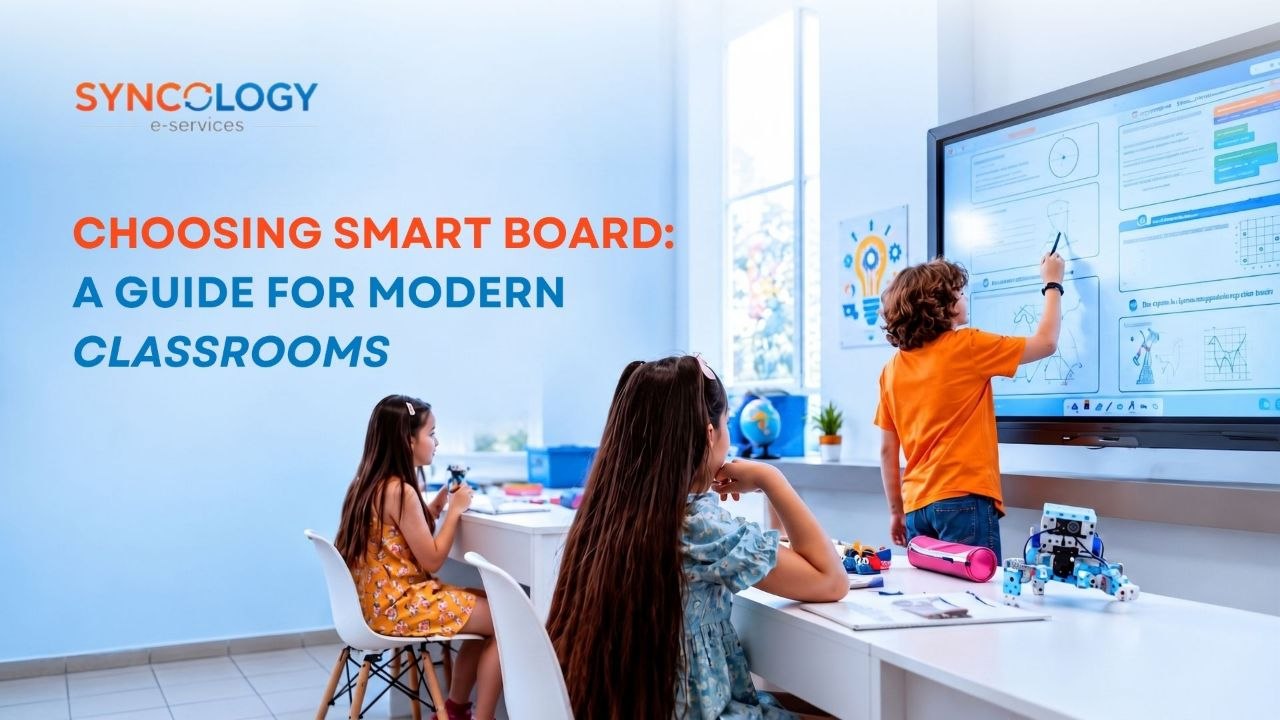

Choosing smart board technology is not simply about selecting the largest screen or the newest model on the market. Schools need to consider how the display will actually be used by teachers and students on a daily basis. Over the past two decades, educational environments have experienced a steady technological evolution. The progression moved from traditional chalkboards and whiteboards to overhead projectors, then to early interactive whiteboards, and finally to modern connected digital classroom displays. Today, educational institutions are shifting toward comprehensive digital ecosystems where interactive screens act as central collaboration hubs.
When school owners, principals, and IT directors begin this evaluation journey, they are often met with a wide array of technical specifications, software licenses, and mounting options. This complexity leads to critical purchasing questions that require careful strategic thought:
- What screen size does the classroom actually need?
- Is 4K resolution necessary for everyday teaching?
- Which operating system should the school choose?
- What software is included with the display?
- Does it work seamlessly with the school’s existing devices?
- Can teachers easily share content without cable clutter?
- Does it support precise annotation and interactive learning?
- What happens when the software needs updating?
- How easy is it to maintain across multiple classrooms?
- Is the higher-priced option actually delivering more educational value?
This article will compare the technical and practical factors schools should consider before purchasing interactive classroom displays. While the term smart board is commonly used to describe interactive classroom displays, schools should evaluate the complete solution rather than focusing only on the display hardware itself. Let us explore the core elements that define a successful deployment when choosing smart board systems for modern education.
Key Selection Factors When Choosing Smart Board Solutions
Choosing smart board technology requires evaluating several interconnected factors simultaneously because a display that looks impressive in a showroom may not necessarily be suitable for everyday classroom use. Decision-makers must look beyond flashy marketing materials and assess how hardware and software integrate into daily lesson delivery.
When choosing smart board equipment, schools generally evaluate three core criteria that determine long-term success:
- Size and Resolution: Ensuring visual clarity and readability for every student in the room.
- Bundled Software: Providing teachers with intuitive tools for lesson creation, whiteboarding, and student engagement.
- System Compatibility: Guaranteeing smooth integration with existing laptops, tablets, networks, and learning management systems.
Let us examine each of these core criteria in detail to understand what educational institutions must look for during the procurement process.
Size & Resolution
Determining the appropriate screen size based on the classroom environment is critical when choosing smart board hardware, rather than simply selecting the biggest available display. A screen that is too small forces students in the back rows to strain, while a screen that is disproportionately large for a compact room can overwhelm the visual space and inflate costs unnecessarily.
Classroom Size and Viewing Distance
Viewing distance directly affects readability in any learning space. Different room configurations demand distinct display dimensions:
- Small Classrooms: Typically accommodate 15 to 20 students in a compact layout. A 55-inch or 65-inch display is often sufficient here because students sit relatively close to the board.
- Standard Classrooms: House 25 to 35 students with traditional desk arrangements. A 75-inch display strikes an optimal balance, ensuring students in the middle and rear rows can read text clearly.
- Large Classrooms and Lecture Halls: Accommodate larger cohorts or tiered seating. In these environments, an 86-inch or 98-inch display—or dual projection setups—becomes necessary to maintain legibility across extended distances.
- Training Rooms: Focus heavily on collaborative group work and digital document sharing, where an 75-inch or 86-inch screen allows participants to view shared workflows comfortably.
Common Display Sizes
When choosing smart board displays, manufacturers typically offer standard diagonal dimensions:
- 55-inch: Best for huddle spaces, small breakout rooms, or administrative offices.
- 65-inch: Suitable for elementary classrooms with shorter viewing distances.
- 75-inch: The most popular choice for standard secondary and high school classrooms.
- 86-inch: Ideal for larger high school classrooms, university lecture rooms, and multi-purpose halls.
- 98-inch: Specialized ultra-large format for expansive lecture halls and auditoriums.
Resolution Standards
Resolution defines the sharpness of the visual output. When choosing smart board technology, schools encounter three primary tiers:
- HD and Full HD (1080p): Increasingly rare for primary interactive displays, though adequate for basic video playback on smaller screens.
- 4K Ultra HD (UHD): The modern standard for classroom displays.
Resolution matters significantly when teachers display dense text, intricate presentations, detailed geographical maps, scientific diagrams, high-definition videos, and fine graphical illustrations. 4K clarity ensures that small fonts remain crisp and legible, reducing eye fatigue for students seated at a distance. However, resolution should never be evaluated independently from screen size and classroom viewing distance.
Key Takeaway: A 4K resolution screen placed too far away loses its practical advantage just as quickly as a low-resolution screen placed close up. Balance screen dimensions with room geometry.
Brightness, Glare, and Ambient Lighting
Classrooms are rarely controlled studio environments; they often feature natural sunlight streaming through large windows or overhead fluorescent lighting. When choosing smart board hardware, IT managers must examine:
- Brightness levels (nits): Higher brightness ensures the image remains vibrant even in sunlit rooms.
- Anti-glare glass: Essential for preventing reflections from overhead lights or windows from obscuring content.
- Viewing angles: IPS or advanced panel technology ensures that students sitting off-center at wide angles can still see colors and text accurately without distortion.
Touch Performance
Interactivity relies heavily on responsive touch technology. When choosing smart board displays, look closely at:
- Multi-touch capability: Allowing multiple students or a teacher and student to interact simultaneously (e.g., 20 to 40 simultaneous touch points).
- Stylus support: Providing a natural, pen-on-paper writing feel with distinct pressure sensitivity.
- Palm rejection: Ensuring that resting a hand or arm on the glass while writing does not create stray digital marks.
- Writing accuracy and low latency: Eliminating noticeable lag between the movement of the pen and the appearance of ink on the screen.
What to Check Before Buying Checklist:
- Verify maximum viewing angles from corner desks.
- Test stylus responsiveness and palm rejection live.
- Check anti-glare coating effectiveness under direct room lighting.
- Confirm touch point capacity for collaborative group exercises.
Bundled Software
The physical display hardware is only one part of an interactive classroom solution. When choosing smart board software and hardware packages, schools must evaluate what digital tools come bundled with the device and whether those tools add genuine, practical value to daily instruction.
Core Software Features to Evaluate
Modern interactive displays often include proprietary software suites designed for teaching. Key features include:
- Digital whiteboarding with infinite canvas space.
- Real-time digital annotation over web pages, PDFs, and videos.
- Wireless screen sharing and casting from various student devices.
- Lesson presentation tools with pre-built educational templates.
- Cloud storage integration (Google Drive, Microsoft OneDrive).
- Screen recording for capturing lessons to review later.
- Teacher account management and custom profile settings.
Pre-Installed vs. Optional Software
When choosing smart board packages, procurement teams must carefully distinguish between different licensing models:
- Included Software: Basic whiteboarding and annotation tools provided at no extra cost with the display.
- Free vs. Trial Software: Advanced lesson creation software offered free for a limited trial period before requiring a paid subscription.
- Subscription-Based Software: Annual or multi-year licensing fees required to unlock premium curriculum tools, collaborative templates, or cloud management portals.
- Third-Party Applications: Compatibility with standard educational apps available via application stores.
Ease of Use and Teacher Adoption
Sophisticated software has limited value if teachers find it difficult or time-consuming to use during a fast-paced lesson. When choosing smart board systems, simplicity and speed are paramount. Teachers should be able to walk up to the display, turn it on, open a lesson, annotate content, share a device screen, and save their work without requiring extensive technical support every time.
Practical Example: A display may boast dozens of advanced artificial intelligence features and complex 3D modeling tools, but if teachers primarily use it as a large digital whiteboard and a presentation screen, the school should question whether it is investing budget in software features that will never be adopted.
Updates and Ongoing Support
Software is never static. Schools must understand the software lifecycle before purchasing:
- Frequency of operating system updates and security patches.
- Compatibility updates when school device operating systems change.
- Vendor support channels and license renewal structures.
System Compatibility
Choosing smart board equipment without checking compatibility can create significant administrative and technical headaches after installation. A display must integrate smoothly into the school’s existing technological ecosystem.
Device Compatibility
Teachers and students bring a wide variety of personal and institutional devices into the classroom. When choosing smart board hardware, verify full compatibility with:
- Windows laptops and desktop computers.
- macOS and iOS devices (MacBooks, iPads, iPhones).
- Android tablets and smartphones.
- ChromeOS devices and Chromebooks commonly used by students.
- Existing school projectors, audio systems, and classroom peripherals.
- School Wi-Fi networks and enterprise security protocols.
- Microsoft 365 and Google Workspace productivity suites.
- Existing Learning Management Systems (LMS) where applicable.
Connectivity Options
Physical and wireless ports determine how easily external devices connect to the display. Look for robust connectivity options:
- HDMI ports: For high-definition video and audio input from laptops or visualizers.
- USB-A and USB-B ports: For connecting touch controllers, thumb drives, and peripherals.
- USB-C ports: Essential for modern laptops, enabling simultaneous video transmission, touch control, and device charging through a single cable.
- Wi-Fi and Bluetooth: For wireless peripherals and internet connectivity.
- Ethernet (RJ45) port: For stable, wired network connections in high-density IT environments.
Wireless Screen Sharing
Wireless casting allows teachers and students to move freely around the classroom while sharing content. When choosing smart board technology, test the stability and security of the casting protocol. Check how many devices can connect simultaneously, whether the system requires specialized apps or native casting protocols (like AirPlay, Miracast, or Chromecast), and what network security controls are in place to prevent unauthorized connections from neighboring classrooms.
LMS and Digital Learning Integration
Many schools utilize digital learning platforms to assign homework, grade assessments, and share resources. An interactive display becomes significantly more valuable when it bridges physical classroom teaching with digital LMS environments, allowing teachers to pull assignments directly onto the screen or save whiteboard notes straight to student portals.
IT Management and Remote Administration
For larger schools and multi-campus institutions operating dozens or hundreds of displays, IT management features are indispensable. When choosing smart board fleets, IT administrators look for:
- Centralized device management consoles.
- Remote firmware and software updates.
- User permission controls and security policy enforcement.
- Real-time device monitoring and diagnostics.
Budget vs Quality When Choosing Smart Board Equipment
Choosing smart board technology should never be reduced to comparing the initial purchase prices of different display brands. A low-cost screen that fails after eighteen months, lacks local technical support, or requires expensive annual software renewals ultimately costs more than a reliable, mid-tier solution backed by a robust warranty.
To evaluate expenses accurately, schools must adopt a Total Cost of Ownership (TCO) framework.
Initial Purchase Price Factors
Upfront costs vary based on several hardware specifications:
- Screen size and native resolution.
- Advanced infrared or projected capacitive touch technology.
- Internal processing power (RAM, storage, CPU).
- Built-in speakers and microphone arrays.
- Integrated camera quality for hybrid learning.
- Bundled software licenses.
Installation and Setup Requirements
Beyond the display itself, schools must account for ancillary implementation costs:
- Professional wall mounting or heavy-duty mobile floor stands.
- Electrical wiring adjustments and power outlet placement.
- Network cabling and switch configurations.
- Cable management trunking to maintain a clean, safe classroom appearance.
- Room preparation and removal of legacy boards or projectors.
Warranty and After-Sales Support
Support availability is a major differentiator in educational procurement. When choosing smart board suppliers, schools should examine:
- The duration and terms of the manufacturer warranty (e.g., 3-year vs. 5-year coverage).
- Whether warranty service is on-site or requires shipping the heavy display away.
- Typical vendor response times and availability of local spare parts.
- Local service technician availability to minimize classroom downtime.
Teacher Training and Professional Development
Investing in technology without training yields poor returns. When choosing smart board solutions, schools must budget for teacher onboarding. A technically advanced display delivers limited value if educators do not know how to utilize annotation tools, wireless screen sharing, interactive lesson templates, and collaboration features effectively.
Quality vs. Price Evaluation Framework
Schools should avoid assuming that the most expensive option on the market is automatically the best fit. Instead, decision-makers should compare products through a structured evaluation pipeline:
UseCaseFeaturesReliabilitySupportTCO
Practical Procurement Checklist
Before finalizing any purchase order, school procurement teams should run through this comprehensive evaluation checklist:
- [ ] Correct screen size matched to classroom dimensions and seating layouts.
- [ ] Suitable 4K UHD resolution for clear text and diagram legibility.
- [ ] Reliable, low-latency multi-touch response with accurate palm rejection.
- [ ] Adequate brightness and anti-glare glass for bright, sunlit rooms.
- [ ] Comprehensive port selection including front-facing USB-C and HDMI.
- [ ] Stable wireless screen sharing compatible with multiple operating systems.
- [ ] Intuitive classroom software with reasonable licensing terms.
- [ ] Comprehensive manufacturer warranty covering on-site repair or replacement.
- [ ] Local technical support and readily available spare parts.
- [ ] Structured teacher training and professional development program.
- [ ] Transparent maintenance plan and predictable long-term software costs.
Comparison Section: What Should Schools Compare Before Buying?
To help school owners and procurement teams organize their evaluation notes, the following comparison framework highlights the critical criteria, what specific elements to inspect, and why each factor matters for daily classroom operations.
| Criteria | What to Check | Why It Matters |
| Screen Size | Classroom dimensions, student count, and maximum viewing distance. | Ensures all students can read text easily without visual strain or discomfort. |
| Resolution | 4K UHD clarity and text rendering quality across wide angles. | Guarantees crisp presentation of detailed diagrams, scientific content, and fine fonts. |
| Touch Performance | Multi-touch point capacity, stylus precision, and low latency. | Enables smooth, natural handwriting and collaborative group exercises without lag. |
| Software | Included whiteboarding apps, lesson templates, and license terms. | Drives teacher productivity and enhances student engagement during lessons. |
| Compatibility | Support for Windows, macOS, ChromeOS, tablets, and school networks. | Prevents connectivity friction and allows teachers to use their preferred devices. |
| Connectivity | HDMI, USB-C, Wi-Fi, Bluetooth, and wired Ethernet ports. | Provides flexible, cable-free usage for diverse digital learning tools. |
| Audio Quality | Built-in speaker wattage, clarity, and sound dispersion. | Ensures multimedia videos and teacher audio are clearly heard across the room. |
| Warranty | Duration, coverage scope, and on-site repair terms. | Mitigates financial risk and protects the school’s long-term capital investment. |
| Support | Local technician availability and vendor response speed. | Minimizes instructional downtime when technical issues arise. |
| Total Cost (TCO) | Initial hardware price plus software licenses, maintenance, and training. | Enables accurate budget planning without hidden surprises or unexpected expenses. |
Conclusion
Choosing smart board technology is ultimately about choosing the right classroom experience, not simply choosing a screen. Throughout this guide, we explored the critical evaluation criteria that school owners, principals, IT managers, and procurement teams must weigh before making an investment. From matching screen dimensions and 4K resolution to classroom geometry, to evaluating intuitive software, multi-device compatibility, wireless sharing, warranty terms, and total cost of ownership, every detail directly influences how effectively teachers instruct and how well students learn.
Before purchasing equipment, schools should carefully evaluate their current classroom environment, network infrastructure, teacher digital literacy levels, and long-term educational goals. Rushing into a purchase based solely on upfront price or flashy specifications often leads to underutilized hardware and frustrated staff.
At Syncology, we help educational institutions navigate this complex decision-making process. Rather than simply supplying hardware, Syncology partners with schools to assess their unique technology requirements, evaluate classroom layouts, review IT infrastructure, and build seamless, connected interactive learning environments.
Ready to upgrade your classrooms with confidence?
Invite Syncology to discuss your school’s specific classroom requirements, review your technology infrastructure, and design a customized interactive learning setup tailored to your academic goals. Contact our team today to schedule your consultation.
Frequently Asked Questions in Choosing Smart Board
What is a smart board?
The term “smart board” is commonly used by educators and administrators to refer to an interactive flat panel display used for teaching, digital annotation, multimedia presentation, and interactive classroom collaboration. These large-format touchscreens combine high-definition visuals with computing power and specialized educational software to replace traditional whiteboards and projectors.
What size smart board is best for a classroom?
The appropriate size depends entirely on classroom dimensions, student seating layout, and maximum viewing distance. Standard classrooms typically benefit from a 75-inch display, while smaller rooms can use 65-inch models and larger lecture halls require 86-inch or 98-inch screens to ensure every student can read text clearly without visual strain.
Is 4K necessary for a classroom smart board?
4K Ultra HD resolution is highly recommended for modern classrooms because it delivers exceptional clarity and sharpness for dense text, intricate diagrams, maps, and high-definition video content. 4K becomes especially important on larger screens (75 inches and above) where lower resolutions can cause text to appear pixelated to students in the back rows.
What should I look for when choosing smart board technology?
When choosing smart board systems, decision-makers should evaluate screen size, resolution, touch accuracy, bundled software capabilities, device compatibility, wireless connectivity options, manufacturer warranty terms, local technical support availability, and the total cost of ownership over the expected lifecycle of the equipment.
Can a smart board work with Google Classroom?
Yes, most modern interactive displays support Google Classroom workflows. Compatibility depends on the display’s operating system (such as Android or Windows), web browser support, casting capabilities, and whether the school uses Google Workspace accounts for teachers and students to access assignments and cloud storage directly from the screen.
Can interactive displays work with an LMS?
Many interactive displays can be used alongside Learning Management Systems (LMS) like Canvas, Blackboard, or Moodle, though the depth of direct integration varies by device hardware, built-in operating systems, and companion software packages. Teachers can typically access LMS portals via built-in web browsers or by connecting a laptop directly to the display.
Do smart boards require internet access?
Basic local functions—such as digital whiteboarding, writing with pens, and displaying content plugged in via HDMI or USB-C—do not require internet access. However, internet connectivity is necessary for advanced cloud-based features, online collaboration, web browsing, wireless casting, software updates, and accessing online educational resources.
How long does a classroom interactive display last?
Longevity depends heavily on daily usage hours, hardware build quality, maintenance practices, software update support, and the operating environment. High-quality commercial-grade interactive displays are engineered for extended daily use in active educational settings, often providing reliable service for many years when properly maintained.
Are expensive interactive displays always better?
Price alone does not determine suitability for a specific school. Schools should compare products based on their actual use cases, required features, hardware reliability, vendor support, and total cost of ownership. A moderately priced display with excellent local support and intuitive software often outperforms an expensive, overly complex model.
Should schools replace projectors with interactive displays?
Replacing aging projectors with interactive flat panel displays is generally recommended for modern classrooms. Interactive displays offer superior brightness, eliminate annoying projector shadows, require no costly bulb replacements, provide significantly better touch interactivity, and operate silently without fan noise, greatly enhancing the overall classroom environment.