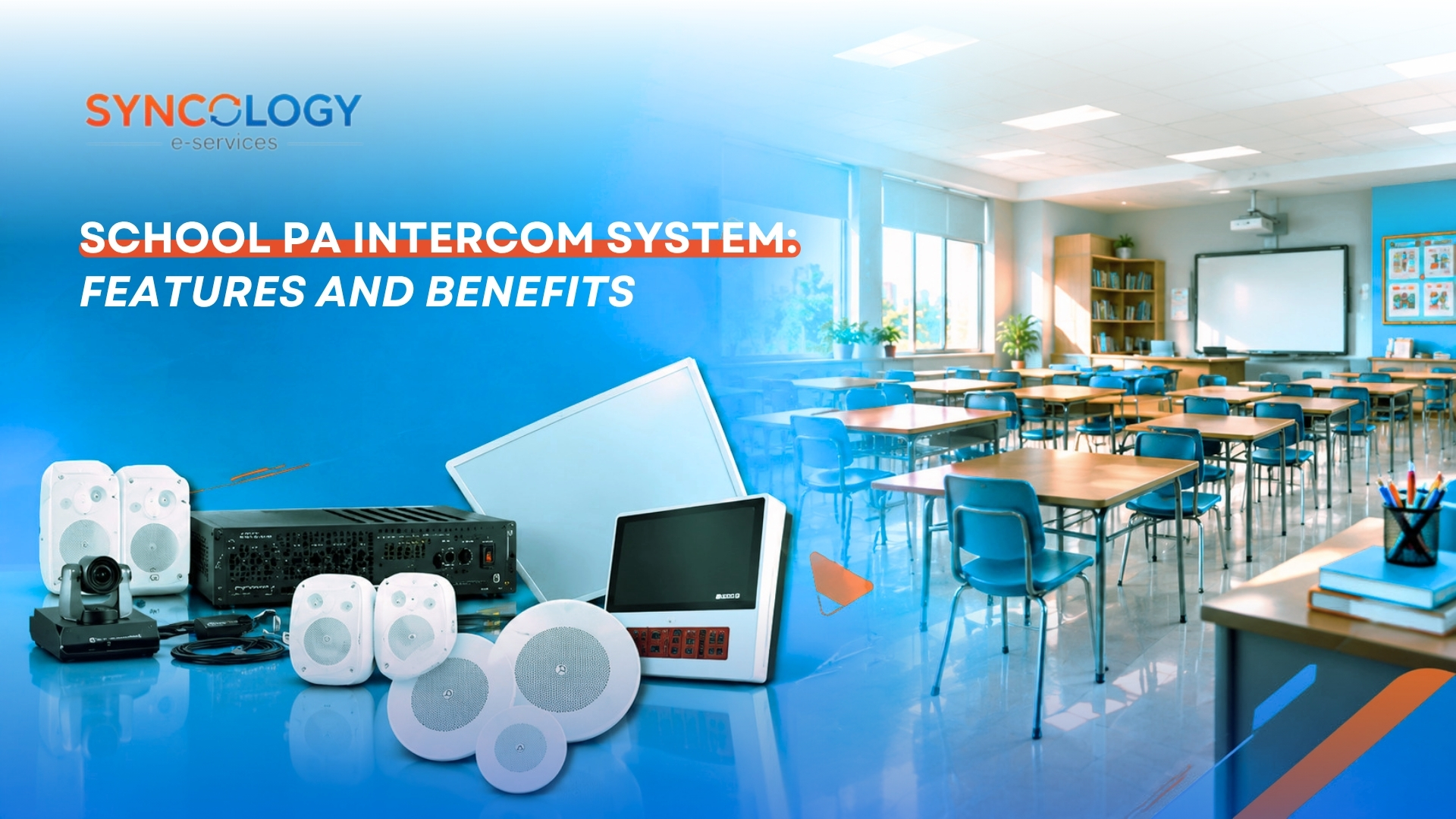


A successful school computer lab setup involves more than purchasing computers and placing them in a room. Schools need to consider hardware, network infrastructure, educational software, classroom layout, security, maintenance, and how students and teachers will use the space. Building a digital learning environment requires careful planning to ensure the technology actively supports the curriculum rather than simply acting as an expensive room of screens.
The growing role of computer labs in education is impossible to ignore. These dedicated spaces are foundational for building digital literacy and essential computer skills in younger students. Furthermore, they are vital for advancing programming and computational thinking as students progress into higher grade levels. A robust school computer lab setup also facilitates deep research and uninterrupted online learning, giving students the tools they need to explore subjects beyond the textbook. Additionally, these spaces are critical for supporting STEM education, practical engineering projects, digital assessments, standardized examinations, multimedia creation, and collaborative learning.
Conversely, a poorly planned lab can lead to device downtime, network bottlenecks, inefficient space utilization, and unnecessary operating costs. When a school IT infrastructure is not aligned with actual usage, teachers experience frustration and instructional time is lost.
This guide outlines the key sections you need to consider, including the equipment schools need, software and device management, layout considerations, budgeting, and ongoing maintenance. Ultimately, the best school computer lab setup is not necessarily the one with the most powerful computers. Rather, it is the one designed around the school’s specific curriculum, student capacity, infrastructure capabilities, and long-term operational needs.
Why Schools Need Modern Labs
Understanding the core educational purpose is the first step in any successful school computer lab setup. A well-planned school computer lab setup supports modern education and gives students access to practical, hands-on digital learning experiences. Schools must identify their primary goals before purchasing equipment, as this dictates the entire design.
1. Building Digital Literacy
A dedicated space allows students to develop essential foundational skills. Through structured lessons in a formal computer lab, students learn proper file management, touch typing, and effective online research techniques. They also practice digital collaboration and responsible technology use within a supervised environment. Mastering these basic concepts early ensures students can navigate digital learning platforms confidently as they advance.
2. Supporting STEM and Programming
A comprehensive school computer lab setup is critical for science, technology, engineering, and mathematics. These labs provide the computing power required for coding and programming lessons, which cannot always be executed on basic tablets. Furthermore, robust workstations support robotics platforms, simulation software, complex mathematics, and scientific applications. Students can also perform data analysis, graphic design, and multimedia projects. The required equipment depends entirely on the curriculum; basic digital literacy classes will not need the same high-end specifications as advanced programming, engineering, or 3D modeling courses.
3. Supporting Digital Assessments
Modern education increasingly relies on online examinations, standardized assessments, research assignments, and computer-based learning activities. A standardized school computer lab setup provides a controlled environment for testing. Schools require reliable connectivity, consistent device configurations, and locked-down access during examinations to maintain academic integrity. Dedicated labs ensure that testing conditions are uniform for every student.
4. Improving Access to Technology
A shared educational computer lab plays a vital role in digital equity. It gives all students reliable access to suitable devices and specialized applications when personal devices at home are unavailable or unsuitable for specific educational tasks. This shared model ensures that no student is left behind due to a lack of personal hardware.
5. Preparing Students for Future Skills
Practical, hands-on computer experience is non-negotiable for the modern workforce. Regular time in a well-equipped lab helps students develop technology confidence, troubleshooting abilities, and critical problem-solving skills. Familiarity with standard digital tools prepares them for higher education and professional environments where technology is ubiquitous.
6. Making Better Use of School Resources
Centralizing technology in a dedicated room can be highly efficient for an institution. Centralized device management, planned maintenance schedules, and shared network infrastructure help schools manage equipment more consistently. A centralized school computer lab setup is often easier to secure, update, and maintain than hundreds of individual devices scattered across multiple classrooms. However, simply installing equipment does not automatically improve academic performance. Positive outcomes depend entirely on curriculum design, comprehensive teacher training, equitable accessibility, and how effectively the technology is integrated into daily lessons.
School Computer Lab Setup Components
A complete school computer lab setup typically includes both physical infrastructure and digital systems working in harmony. Schools cannot afford to focus solely on the computers while ignoring the surrounding ecosystem.
A fully functional environment requires several major categories of school computer lab equipment. This includes the computers or workstations themselves, along with appropriate monitors and peripherals. Behind the scenes, robust network equipment, reliable internet connectivity, and safe electrical infrastructure are mandatory. On the digital side, schools must invest in educational software, device and user management tools, and comprehensive security and backup solutions. Finally, ergonomic furniture and accessories tie the physical room together.
Schools should carefully determine their specific equipment requirements based on student capacity, the curriculum being taught, application requirements, and the number of simultaneous users. A successful school computer lab setup balances these elements flawlessly. Let’s transition into the two main components: hardware and networking infrastructure, followed by software and lab management tools.
Hardware & Network
Selecting the physical equipment and network infrastructure is a foundational step in your school computer lab setup. A reliable school IT infrastructure prevents mid-lesson crashes and ensures smooth instructional delivery.
1. Desktop Computers vs. Laptops
Choosing between desktops and laptops is one of the most significant decisions in a school computer lab setup. Neither option is universally better; schools should choose according to space, budget, curriculum, and how frequently equipment needs to be moved.
| Feature | Desktop Computers | Laptops |
| Suitability | Often suitable for permanent, shared lab environments. | Offer greater flexibility and portability for varied spaces. |
| Configuration | Easier to configure as standardized, fixed workstations. | Can be stored in carts or moved to different classrooms when needed. |
| Upgradability | May offer more upgrade flexibility for RAM and storage over time. | May support flexible classroom arrangements but are harder to upgrade. |
| Space Needs | Require dedicated desk space and extensive cable management. | Require charging arrangements, secure storage carts, and battery management. |
2. Computer Specifications
The heart of any school computer lab setup is the workstation hardware. Schools must carefully evaluate the processor, RAM, storage type and capacity, and whether the system requires integrated or dedicated graphics. Furthermore, administrators must select an appropriate monitor size and resolution, and ensure operating system compatibility.
Basic office applications and digital literacy lessons have vastly different requirements from 3D design, video editing, engineering software, and advanced programming. A lab dedicated to multimedia creation will need discrete graphics cards and high-resolution displays. Schools must always check the minimum and recommended specifications of the specific applications they plan to use before purchasing any devices.
3. Network Infrastructure
A modern educational computer lab is useless without robust connectivity. The school network infrastructure relies heavily on commercial-grade network switches, routers, wireless access points, and organized structured cabling. Reliable internet connectivity and stringent network security controls round out the ecosystem.
A reliable wired Ethernet connection can be highly beneficial for fixed desktop workstations, providing stable speeds for large downloads. Conversely, Wi-Fi can support mobile devices, laptops, and flexible learning spaces. Network capacity must account for dozens of simultaneous users accessing cloud applications, downloading software updates, taking digital assessments, and streaming online learning resources concurrently.
4. Power and Peripheral Equipment
Power requirements are often underestimated in a school computer lab setup. A lab requires adequate power outlets, surge protection, and Uninterruptible Power Supply (UPS) devices where appropriate to prevent data loss during outages. The lab also requires durable keyboards, optical mice, headsets for multimedia tasks, and printers where needed.
Instructional equipment like projectors or interactive displays are essential for the teacher’s station. Cable management is critical to prevent tripping hazards and equipment damage. Electrical planning and installation must always be handled by qualified professionals and comply strictly with all applicable local safety requirements.
5. Network Security
Protecting student data and school assets is paramount. Network security for a school computer lab setup should include network segmentation where appropriate, separating student traffic from administrative data. Secure Wi-Fi, strict access controls, robust firewall protection, and controlled administrative privileges are mandatory.
Security requirements should actively reflect the age of the students, the school’s legal data protection obligations, and the specific applications being utilized in the lab.
Software & Management
The software layer is just as important as the hardware in a school computer lab setup. A lab can contain the highest-specification computers available but still operate inefficiently if the software is outdated, poorly configured, or difficult to navigate.
1. Operating Systems
Choosing the right operating system is a foundational software decision. The chosen OS must support the school’s curriculum, educational software requirements, internal security policies, and the capabilities of the IT support team. Mixing operating systems without a clear purpose creates unnecessary administrative overhead. Consistent device configurations simplify troubleshooting and routine maintenance, ensuring teachers spend time teaching rather than resolving system errors.
2. Educational Software
A school computer lab setup must include the right mix of applications to be effective. This typically covers office and productivity tools, specialized programming environments, and mathematics and science applications. Depending on the curriculum, schools may also need digital design tools, multimedia applications, secure browsers, and research tools.
Seamless learning management system (LMS) access and compatible digital assessment platforms are also critical. Schools should meticulously check licensing terms, supported operating systems, age appropriateness, and hardware requirements before wide-scale deployment.
3. Classroom and Lab Management Software
To maintain order and facilitate instruction, computer lab management software is indispensable. These lab management tools help teachers and IT administrators actively oversee devices during class. Potential features include viewing student workstation status, sharing the teacher’s screen or instructional content, and monitoring overall lab availability.
Teachers can also use these tools for managing user access, restricting access to selected applications or websites when appropriate, and deploying software updates. It is important to distinguish classroom monitoring tools (used by teachers for instruction) from backend device management systems (used by IT for deployment); they serve related but different operational purposes.
4. User Accounts and Access Control
Effective user management protects the integrity of the school computer lab setup. There are distinct benefits to providing individual student accounts, enforcing role-based permissions, and applying appropriate restrictions on installing software or changing core system settings.
Proper account management can support student privacy and academic accountability while preventing unauthorized changes that cause system downtime. Students should be able to access their work seamlessly, but they should never have local administrator rights.
5. Updates, Backups, and Data Protection
Maintaining a secure digital learning environment requires ongoing diligence. IT teams must cover regular operating system updates, application patches, malware protection, backup procedures, and disaster recovery planning.
Backups should be designed meticulously around the school’s actual data storage model. Shared local files, cloud-hosted documents, and central on-premise servers may require entirely different backup approaches to ensure student portfolios and grades are never lost.
6. Centralized Management
When a school operates many computers or multiple distinct labs, localized management becomes impossible. Centralized configuration and deployment can significantly reduce repetitive manual work for the IT department.
A robust school computer lab setup relies on automated imaging and software deployment. The school should assess whether it needs a dedicated mobile device management (MDM) or endpoint management platform based on the total number of devices, the size of available IT staff, and the complexity of its digital environment.
Lab Design & Layout
Room design heavily influences usability, teacher supervision, accessibility, safety, and the overall long-term value of a school computer lab setup. Tossing desks into a room without a spatial strategy leads to cramped conditions and ineffective teaching. Computer lab design for schools requires intentional architectural planning.
1. Determine Capacity and Space
Before purchasing furniture, administrators must estimate the correct number of workstations. This calculation is based on total student enrollment, average class size, the master timetable, and the specific curriculum being taught. Furthermore, the available floor space and the teacher’s workstation requirements will dictate spatial limits.
Administrators should avoid suggesting one universal workstation-to-student ratio. True capacity must account for local building requirements, accessibility standards, room dimensions, and safe student circulation between rows.
2. Choose the Right Desk Arrangement
The physical layout defines how a school computer lab setup functions during a lesson. Several common configurations exist, each serving different instructional styles:
- Rows: Highly useful for independent, individual work and traditional teacher-led instruction.
- U-shaped layout: Can vastly improve teacher visibility and facilitate central demonstrations, depending heavily on room dimensions.
- Cluster arrangement: May effectively support collaborative, project-based learning, but requires careful cable management and sightline planning to prevent off-task behavior.
- Flexible layout: Can accommodate many different activities if the computer lab furniture, floor power outlets, and wireless network arrangements support physical movement.
Schools must weigh the advantages and limitations of each arrangement against their primary teaching methodology.
3. Ergonomics and Accessibility
Physical comfort directly impacts student focus. A proper school computer lab setup must include appropriate desk and chair heights, optimal monitor positioning, and screen glare reduction. Maintaining comfortable viewing distances prevents eye strain during long periods of digital work.
Furthermore, the design must feature fully accessible workstations and clear circulation routes for wheelchair access. Accommodation for students with disabilities is a legal and ethical requirement. Ergonomic planning should actively support different student ages, sizes, and specific physical needs.
4. Lighting, Ventilation, and Temperature
Environmental factors play a massive role in a successful digital learning environment. Adequate lighting, window glare control, continuous ventilation, and suitable temperature management matter deeply for both student comfort and safe equipment operation.
Dozens of running computers generate significant heat, requiring robust air conditioning. Device placement should never obstruct computer ventilation fans or create unsafe cable arrangements that block airflow.
5. Teacher Visibility and Supervision
A well-designed school computer lab setup empowers the instructor. Teachers should be able to supervise student activity and provide immediate support without navigating unnecessary physical obstacles.
If a teacher cannot see a student’s screen, classroom management suffers. Screen positioning should carefully balance teacher visibility, student privacy for assessments, and the practical needs of daily classroom instruction.
6. Safety and Security
Physical safety is the final pillar of computer lab design. This encompasses secure equipment storage, heavy-duty cable management, and strict electrical safety protocols.
The lab requires clear emergency access, physical security locks to deter theft, and appropriate fire-safety provisions. The final room design should be thoroughly reviewed against all applicable local building codes, electrical standards, accessibility laws, and fire-safety requirements.
Cost & Maintenance
The true cost of a school computer lab setup depends on much more than the initial retail price of the computers. Schools often suffer budget shortfalls because they fail to account for the Total Cost of Ownership (TCO) over a five-year lifecycle.
To properly budget for educational technology infrastructure, schools should use this formula:
Total Cost = Hardware + Network + Furniture + Software + Installation + Training + Maintenance + Replacement
1. Hardware Costs
Several distinct factors influence hardware expenditure in a school computer lab setup. Schools must calculate the total number of workstations, specific computer specifications, monitor requirements, and necessary peripherals.
Additionally, budgets must include the cost of extended warranties, the expected useful life of the machines, and the purchase of spare devices or components. Schools should boldly choose specifications based on actual curriculum needs rather than automatically purchasing the highest-performance, most expensive devices on the market.
2. Network and Infrastructure Costs
A school computer lab setup requires a hidden layer of infrastructure investment. This includes commercial network switches, in-wall cabling, heavy-duty routers, and enterprise wireless access points.
Budgeting must also account for monthly internet service, electrical preparation of the room, surge power protection, and professional installation and configuration. Infrastructure costs can vary significantly depending on the age and condition of the existing room and the school’s current network backbone.
3. Software and Licensing
Software costs are often recurring and require careful annual budgeting. Schools must account for operating systems, specialized educational applications, endpoint security tools, and lab management platforms.
Recurring cloud subscriptions can quickly inflate costs. IT buyers should recommend verifying whether licenses are priced per device, per individual user, per year, or if they are already included in an existing district-wide school agreement.
4. Installation and Training
A functional lab does not deploy itself. The computer lab setup cost must include the labor for initial device configuration, complex network setup, mass software installation, and active user account creation.
Time must be allocated for system testing, comprehensive teacher training, and specialized IT administrator training. If staff cannot effectively use or manage the new technology, the entire physical investment is wasted.
5. Preventive Maintenance
Routine computer lab maintenance extends the lifespan of the equipment. IT teams must conduct regular checks for hardware faults, push operating system updates, and verify software compatibility.
Administrators should routinely monitor network performance, troubleshoot peripheral issues, check device ventilation, ensure room cleanliness, and test backup and recovery readiness. Preventive maintenance can help identify underlying issues before they disrupt daily lessons, although it cannot entirely eliminate all spontaneous equipment failures.
6. Replacement Planning
Technology degrades over time, making replacement cycles a vital part of a school computer lab setup. Schools should actively plan for equipment replacement based on physical device condition, slowing performance, expiring software support, rising repair costs, and evolving curriculum requirements.
Keeping a small number of spare peripherals, extra monitors, or suitable backup devices on hand can help drastically reduce classroom disruption when older equipment inevitably fails.
7. How to Optimize the Budget
There are strategic ways to control the overall cost of a school computer lab setup. Schools should prioritize curriculum-critical requirements over luxury features. Standardizing device configurations where practical drastically reduces support costs.
Buyers should compare warranty and support packages side-by-side and evaluate business-grade refurbished equipment carefully where appropriate. Schools must strictly avoid unnecessary, overlapping software subscriptions and plan for long-term maintenance and replacement from the very beginning. Ultimately, the lowest initial purchase price is almost never the lowest long-term cost.
Practical Checklist: Before Launching a School Computer Lab
To ensure nothing is missed during your school computer lab setup, use this comprehensive checklist before opening the doors to students.
Planning
- Define the lab’s specific educational objectives and curriculum goals.
- Identify the exact software applications students and teachers will use.
- Estimate student capacity based on enrollment and room dimensions.
- Confirm the total budget, including infrastructure and ongoing maintenance.
Hardware and network
- Select suitable computers that meet the required curriculum specifications.
- Verify all educational software compatibility with the chosen operating systems.
- Check internet bandwidth and local area network capacity for simultaneous users.
- Plan electrical power outlets and safe, integrated cable management.
- Test all peripherals, audio headsets, and instructional displays.
Software and security
- Install all licensed software via a centralized deployment tool.
- Configure individual student and staff accounts with appropriate permissions.
- Apply network and endpoint security settings to protect data.
- Set up automated system updates and secure data backups.
- Test reliable access to all required online learning platforms.
Layout and operations
- Confirm safe, unobstructed circulation routes and emergency exits.
- Check lighting conditions, screen glare, and room ventilation.
- Prepare fully accessible workstations for students with disabilities.
- Train teachers on lab management tools and IT staff on troubleshooting.
- Document standardized computer lab maintenance and operational procedures.
Conclusion
A successful school computer lab setup requires the right combination of high-quality equipment, streamlined software, robust infrastructure, intentional room design, and proactive ongoing management. Schools must view the lab as a cohesive educational ecosystem.
To maximize the value of this investment, administrators must reinforce several key decisions. First, they must clearly define the educational purpose of the space. Then, they should choose hardware that strictly matches the curriculum requirements, build a reliable and highly secure network, and select suitable educational software. Furthermore, planners must design a safe, ergonomic, and accessible room, accurately calculate total ownership costs, meticulously plan for maintenance and eventual device replacement, and thoroughly train both teachers and IT staff.
The most important takeaway is that the lab should be designed entirely around the way students learn and the way teachers work, rather than being treated simply as a collection of expensive computers. Technology must serve the pedagogy.
As a practical recommendation: schools should comprehensively assess their current electrical and network infrastructure and accurately project future academic requirements before purchasing any hardware. By doing so, the school computer lab setup remains highly useful, easily manageable, and perfectly adaptable as modern educational needs inevitably evolve.
Need More Information?
Contact Syncology Team Now!
Frequently Asked Questions
What is a school computer lab setup?
A school computer lab setup involves the comprehensive planning, physical installation, and ongoing management of the hardware, software, network, furniture, and security measures needed to support computer-based learning. It transforms an empty classroom into a fully functional, highly secure digital learning environment tailored to a school’s specific curriculum.
How many computers does a school computer lab need?
The exact number of computers depends heavily on total student enrollment, average class size, the master school timetable, and the specific curriculum being taught. Additionally, room capacity, electrical infrastructure, and applicable building accessibility requirements will physically limit how many workstations can be safely installed.
What specifications should school lab computers have?
Hardware specifications depend entirely on the applications students will use. Basic digital literacy and word processing require very minimal specifications. Conversely, advanced programming, 3D graphic design, and engineering applications can require powerful processors, extensive RAM, and dedicated graphics cards to function properly.
Is a wired network better than Wi-Fi for computer labs?
Both have distinct advantages. Wired Ethernet connections can offer superior, consistent performance and faster speeds for fixed desktop workstations. Wi-Fi provides essential flexibility for laptops and mobile devices. Many modern labs benefit from using both technologies where appropriate to maximize connectivity and flexibility.
What software does a school computer lab need?
A functional lab requires standardized operating systems, common productivity tools, and specialized educational applications based on the curriculum. Additionally, it requires robust endpoint security tools, secure web browsers, and computer lab management software where required to help teachers monitor student screens and control access.
How can schools secure their computer labs?
Schools can secure their computer lab setup by implementing strict user access controls, enforcing automated software updates, and deploying robust endpoint protection. Additionally, administrators should prioritize network security firewalls, automated cloud backups, physical equipment locks, and clearly communicated, appropriate student-use policies.
How much does a school computer lab cost?
The total cost depends on the workstation count, specific hardware specifications, necessary network infrastructure upgrades, and ergonomic furniture. Budgeting must also include annual software licenses, professional installation labor, and ongoing technical support. Schools must calculate the total cost of ownership, not just the retail hardware price.
How often should school computer labs be maintained?
Maintenance schedules should actively reflect the age and needs of the equipment, the frequency of necessary software updates, and original manufacturer guidance. Furthermore, usage intensity dictates how often physical cleaning and cable checks are required, all guided by the school’s internal IT operational policies.
Can a computer lab support digital exams?
Yes, a lab can easily support standardized digital exams. However, this is only possible provided that the individual devices, network bandwidth, installed software, restrictive account permissions, and the specific digital assessment platform strictly meet the examination board’s stringent technical and security requirements.
How can schools reduce computer lab downtime?
Schools can significantly reduce downtime by utilizing standardized device configurations, adhering to strict preventive maintenance schedules, and actively monitoring network health. Furthermore, having documented troubleshooting procedures, automated data backups, and a supply of spare peripherals where practical ensures lessons continue even when minor hardware fails.